In my Ubuntu PC, I like malware scanner notifications to show an alert dialog. Unfortunately, the Maldet (Linux Malware Detect, also called LMD) malware scan utility does not offer this feature. It only notifies via emailed scan reports, and I don’t want to use that feature.
This article will walk you through the process of setting up a system that generates a popup alert dialog whenever Maldet identifies what it considers to be malware. With this approach, you can ensure timely awareness of malware detections and take prompt actions to protect your Ubuntu PC.
How it will work
Two malware scanner cron jobs
You will have two separate Maldet cron jobs that will scan specific directory paths every 24 hours. These scans will only target files that have been created or modified within the last seven days and there should not be any redundant scanning of files between the two.
The first cron job will run as the admin user and scan locations specified in the /etc/cron.daily/maldet script, excluding (for an exception, see note below) the /home/<user> directories. This is the default maldet cron job that is setup after its installation.
The second cron job will run under your non-admin user context and will scan only their respective user directory. This cron job is not created by default in a maldet installation, so it will ineed to be created in the setup instructions below.
Note: If you have a web server installed within a user directory, any directory named “public_html” within the user directory will be included in the root user’s Maldet scan. You can verify this by examining the /etc/cron.daily/maldet file once Maldet is installed (see below for installation instructions).
Two malware scanner alert cron jobs
You will have two hourly cron jobs for alert generation, with one running as root and the other as your non-admin user. Each will run a script that parses “maldet — report list” for maldet reports that include malware hits, and if it finds any in the past week, will open a popup alert dialog showing the report results for them, including a description of how to open the reports in a console window. These cron jobs are not part of the default Maldet installation, and so will be created as part of the setup instructions below.
In addition to any malware-positive Maldet report summaries, the popup dialog will display the username (root or <user>) of the context from which the scan was generated.
Here is an example of a popup maldet alert window that was launched from the maldet_popup.sh cron job that is run from the admin context.
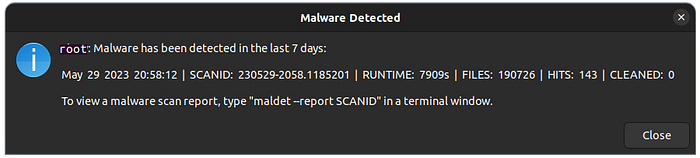
As long as HITS is > 0 for reports created in the last seven days, this alert message will popup every hour. This seven-day look-back threshold value is configurable in the script.
Setting it up
Before you get started, you should already have Maldet installed and you should do a complete Maldet recursive scan (maldet -a /home/<user>) of your /home/<user> directory under the <user> context because the <user> cron job that you will setup below does a scan of only new and modified files within the last week. Doing a full scan now will not only scan all of the files regardless of their timestamp, and give you a baseline report, but will allow you to identify any false positives so that you can exclude them with the Maldet exclude-regex option shown in Step 3 below.
Step 1: Install Zenity
Zenity allows you to display simple GTK+ dialogs from shell scripts. Install it here.
sudo apt update
sudo apt -y install zenity
sudo apt -y install zenity
Step 2: Create the Maldet Popup script
Open a terminal window as <user>. Not an admin user. Create the “scripts” directory as follows.
mkdir /home/<user>/scripts
cd /home/<user>/scripts
mkdir log
…and in this /home/<user>/scripts directory, create a new file called maldet_popup.sh containing the following.
#!/bin/bash
# AUTHOR: Max Meinhardt. 05/30/23.
# DESCRIPTION: This script parses "maldet --report list" for any scan report lines that have HITS > 0, and displays a popup dialog showing those lines.

DAYS_THRESHOLD=7  # Max number of days to look back for a maldet scan

# Get the current date and the date two days ago
CURRENT_DATE=$(date +%Y-%m-%d)
THRESHOLD_DATE=$(date -d "$DAYS_THRESHOLD days ago" +%Y-%m-%d)

# Run the maldet command and process the output
maldet_output=$(maldet --report list)

# Variables to store triggering lines and the flag to track if there are any triggering lines
triggered=false
triggering_lines=""

# Set the IFS to newline
IFS=$'\n'

# Iterate over the maldet output and check for triggering lines
while IFS= read -r line; do
  if [[ $line == *SCANID:* ]]; then
    HITS=$(echo "$line" | awk -F'|' '{print $5}' | awk -F'HITS:' '{print $2}' | awk '{print $1}')
    DATE=$(echo "$line" | awk '{print $1" "$2" "$3}')
    LINE_DATE=$(date -d "$DATE" +%Y-%m-%d)
    if [[ "$LINE_DATE" > "$THRESHOLD_DATE" ]]; then
      if [ "$HITS" -gt 0 ]; then
        triggered=true
        triggering_lines+="\n$line"
      fi
    fi
  fi
done <<< "$maldet_output"

# Display the popup dialog if there are any triggering lines
if [ "$triggered" = true ]; then
  # Display the popup dialog with buttons to open maldet reports
  zenity --info --width=0 --display=:0.0 --title="Malware Detected" --text=$USER": Malware has been detected in the last $DAYS_THRESHOLD days:\n$triggering_lines \
    \n\nTo view a malware scan report, type \"maldet --report SCANID\" in a terminal window." \
    --ok-label="Close"
fi
Then, add permissions to execute it.
chmod +x maldet_popup.sh
Step 3: Add Maldet Scan and Popup Cron Jobs for Non-Admin User
Add two cron jobs that run under the <user> context:
The first cron will run every hour and opens the alert popup if there are any malware files found in Maldet scans from the past seven days.
The second cron runs Maldet to recursively scan for malware daily at midnight, and only new/modified files with a timestamp less than seven days old and in the /home/<user> directory.
Open the <user> crontab by typing the following.
crontab -e
The crontab file will then open in your default editor.
Enter the following lines to the bottom of the crontab file. <user> is your Linux user name.
0 * * * * /home/<user>/scripts/maldet_popup.sh >> /home/<user>/scripts/log/maldet_popup.log 2>&1
0 0 * * * /usr/local/maldetect/maldet -b - exclude-regex "/home/[^/]+/Clam" -r /home/<user> 7 >> /dev/null 2>&1
NOTE: The .log file simply contains maldet_popup.sh runtime error messages, and will automatically be created if there is an error.
NOTE: All directories called “Clam” are excluded from the maldet scans because it is a common name for a ClamAV installation, and those files within in throw false positive malware alerts.
Step 4: Add the Alert Dialog Script for Admin
Now, add the maldet alert dialog script that will run every hour within the root user context. I am running the script that is in the /home/<user>/scripts directory. Type the following to do this.
cd /etc/cron.hourly
sudo ln -s /home/<user>/scripts/maldet_popup.sh ./maldet_popup.sh
That’s it.